Gunslugs 2
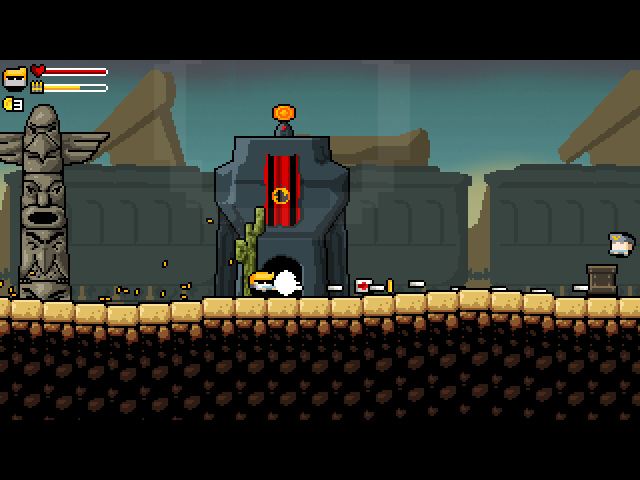
Run, jump and shoot through chaotic action-platforming missions against the Black Duck Army.
Port Details
Genres
action
platformer
Requirements
Porter
Downloads
37
Last Updated
2026-10-22
Rating
None
Miscellaneous
Instructions
Place your legally obtained Gunslugs2.jar in
Additional Information
Notes
Thanks to Orangepixel for creating Gunslugs 2. Run, jump and shoot through chaotic action-platforming missions against the Black Duck Army. PortMaster adaptation by Pixelforge Ports (Ronax).
Get Gunslugs2.jar from GOG
Windows:
- Open Gunslugs 2 on GOG in your owned library and download the full Windows offline backup installer.
- Run the installer on Windows and open the installed game directory. Find
Gunslugs2.jarbeside the game executable. Enable file extensions in Explorer so its name is visible.
Linux:
Alternatively, extract your full offline installer using innoextract.
Run innoextract -d extracted "your-full-offline-installer.exe", then locate Gunslugs2.jar
inside the extracted files (usually extracted/app/).
Supported archive SHA-256 (Gunslugs2.jar):
8f92f9ea2f84b055be744f98b911dbcdc6f8199bd1ec75b54338bff3ffffa913
Copy the owned file to <ports directory>/gunslugs2/gamedata/Gunslugs2.jar.
Launch Gunslugs 2 from your firmware's ports menu.
The launcher detects display size and supports 640x480, 720x480, 720x720, 1024x768, 1280x720, and other valid PortMaster dimensions while preserving aspect ratio. If detection is wrong, put the actual size, such as 720x480, in gunslugs2/resolution.txt; use auto or remove the file to restore automatic detection.
Back up gunslugs2/saves/ before updating. If startup fails, check gunslugs2/log.txt. When reporting a problem, include the device, firmware version, resolution, reproduction steps, and log. Keep purchased game files private.
Controls
| Control | Keyboard input / action |
|---|---|
| D-pad up | UP / Up / navigate |
| D-pad down | DOWN / Down / navigate |
| D-pad left | LEFT / Left / navigate |
| D-pad right | RIGHT / Right / navigate |
| A | X / Action / confirm |
| B | Z |
| X | UP / Up / navigate |
| Y | DOWN / Down / navigate |
| L1 | X / Action / confirm |
| R1 | Z |
| L2 | X / Action / confirm |
| R2 | Z |
| Start | O / Options |
| Select | ESC / Back / pause |
| Left stick | Same directions as the D-pad |
| Select + Start | Exit; save through the game first |
Use the game's default keyboard bindings. Start sends O for options.